# VS Code 확장팩

VS Code는 프로그램 작성에 도움을 주는 다양한 확장팩이 있습니다.

1\.  설치 방법\
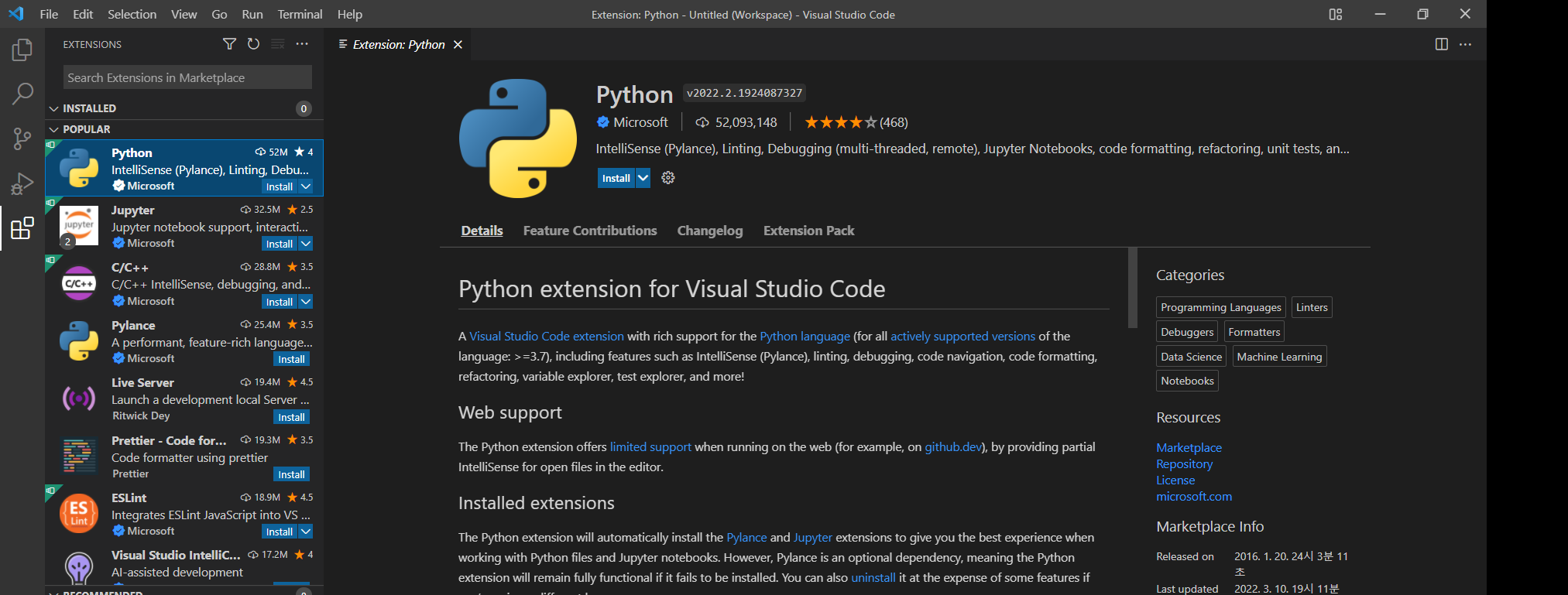
\- 왼쪽 메뉴에 있는 사각형 모양을 선택합니다.

<figure><img src="https://blog.kakaocdn.net/dn/tnVix/btrvDhdX86D/NhPHqbbcCslU8KDtdhCko0/img.png" alt=""><figcaption></figcaption></figure>

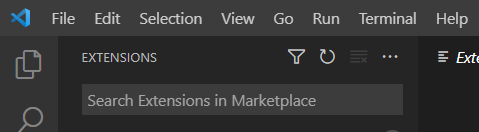
2\. 검색창에서 설치를 원하는 확장팩을 입력하고 엔터를 누르면 목록이 표시되면 원하는 것을 찾아서 설치하면 됩니다.

<figure><img src="https://blog.kakaocdn.net/dn/ndPBN/btrvF9FKAEN/b1ZdX9Wf3Umn5KGnBRIKG0/img.png" alt=""><figcaption></figcaption></figure>

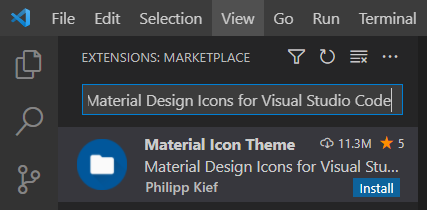
1\. Material Design Icons for Visual Studio Code

<figure><img src="https://blog.kakaocdn.net/dn/ulw0p/btrvDPBsZKU/YjopvHciASggKRsONNK8ak/img.png" alt=""><figcaption></figcaption></figure>

2. Python Extension Pack\
   \- Python\
   \- Jupyter\
   \- Pylance\
   \- Visual Studio IntelliCode\
   \- autoDocstring &#x20;

<figure><img src="https://1889142648-files.gitbook.io/~/files/v0/b/gitbook-x-prod.appspot.com/o/spaces%2FVfLaXPTe0t3ptNpFbmH5%2Fuploads%2FSuI2lrQWYs3pTlg6Wyb7%2Fimage.png?alt=media&#x26;token=834b50e7-07bd-434e-805f-47f58c26f76a" alt=""><figcaption></figcaption></figure>

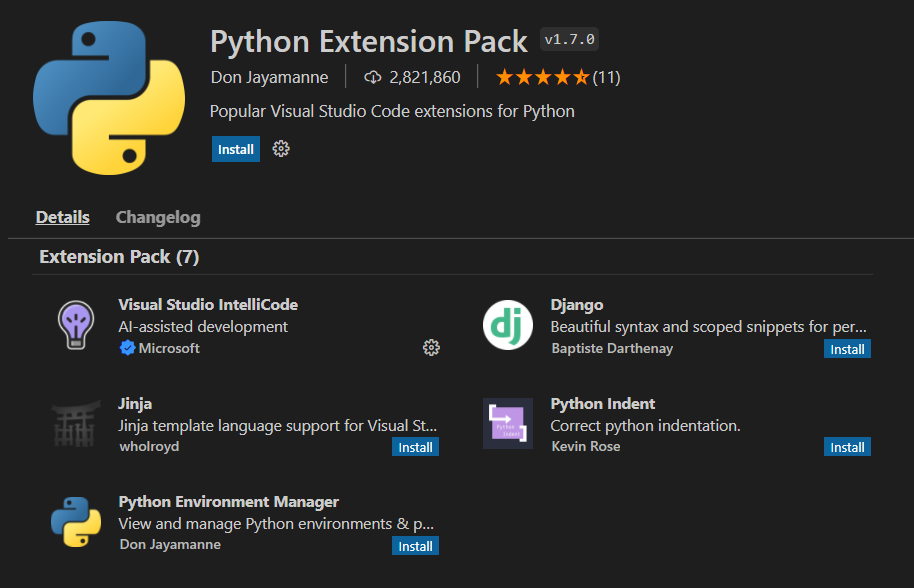
3. Python Extension Pack\
   Python  \
   Jinja  \
   Django  \
   Visual Studio IntelliCode \
   Python Environment Manager \
   Python Docstring Generator \
   Python Indent \
   Jupyter

<figure><img src="https://blog.kakaocdn.net/dn/ch91us/btrvF9Z39RE/hLI8xMbW2afv2pDfTNH8Qk/img.png" alt="" height="344" width="535"><figcaption></figcaption></figure>

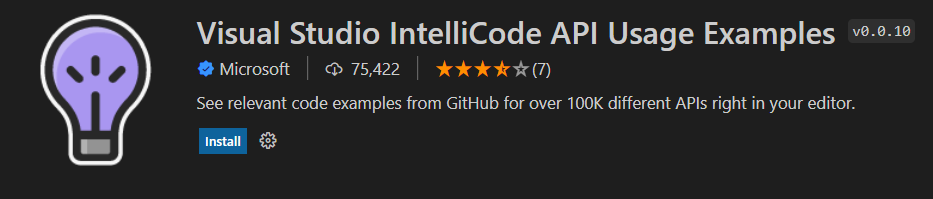
4  Visual Studio IntelliCode \
API Usage Examples

<figure><img src="https://blog.kakaocdn.net/dn/bLy13x/btrvDhLMJDN/zGql5BhhjJVK8KcpAknPb1/img.png" alt="" height="116" width="544"><figcaption></figcaption></figure>

4\. Better Comments

<figure><img src="https://blog.kakaocdn.net/dn/9hWPL/btrvu2uYFKw/rvjKfrLYi5ykzpYd3jmun0/img.png" alt="" height="116" width="550"><figcaption></figcaption></figure>

&#x20;

&#x20;

&#x20;